
Introduction: Why Every Medical Researcher Should Learn SPSS
Does the phrase “statistical analysis” tighten your stomach a little? You’re not the only one. Plenty of doctors, nurses, and students freeze up the first time they have to make sense of their own data. The reassuring part is that SPSS software takes a good chunk of that stress off your plate.
It’s one of the go-to tools for medical research statistics, mostly because it runs serious tests for you without a line of code. No surprise that hospitals, universities, and research teams lean on it day after day.
Most medical students think that they cannot run a statistics software as they are not maths experts. So, in this tutorial, we’ll walk through what SPSS is, how it works, and how to use it step by step on your own research.
What is SPSS and Why is it Used in Medical Research?
SPSS stands for Statistical Package for the Social Sciences. The name throws people off, since it’s really not a social science tool at all. It was built for statistical analysis in general, and somewhere along the line, the medical field adopted it as a favorite.
Walk into almost any research setting, clinical trials, public health work, epidemiology, or medical education studies, and you’ll find SPSS somewhere in the mix. The appeal is pretty simple. It handles the messy math, so you don’t have to. Instead of juggling formulas in your head, you click a few buttons and let it run whatever test you picked. Its beginner-friendly layout makes it a popular choice among young medical researchers.
And then there’s the question that comes up constantly: how is this any different from Excel? Both store data, true, but their jobs aren’t the same.
| Excel | SPSS |
| Data storage | Statistical analysis |
| Basic calculations | Advanced statistical tests |
| Manual formulas | Built-in statistical procedures |
Put simply, Excel keeps your numbers tidy. SPSS statistical software tells you what those numbers are trying to say.
Understanding the SPSS Interface: A Quick Tour
A bunch of windows and a row of tabs appear in front of you as you open the software. But as we dive deep into the software, it stops looking intimidating as every screen does its job.
Start with the Data View. This is your raw data, plain and simple. One row per participant, one column per variable, like age or blood pressure. Anyone who has touched a spreadsheet will recognize it right away.
Right next to it sits the Variable View. Think of this as the spot where you explain your data to SPSS. You name each variable, choose its type, add labels so the columns read clearly, and tie codes to values (that part comes up shortly).
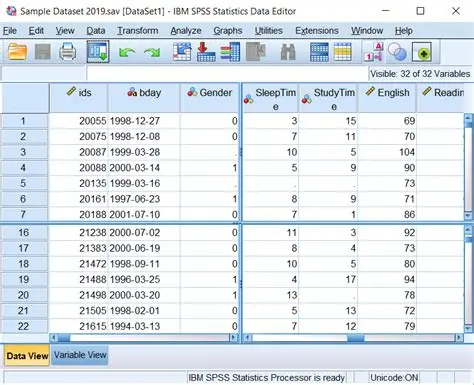
After that comes the Output Window. Run a test and your tables, charts, and numbers all land here.
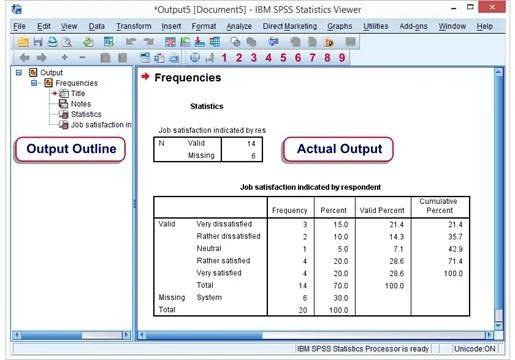
One more screen: the Syntax Window, where you type commands instead of clicking. If you’re just getting started, skip it for now. Nobody will judge you.
Tip: Picture Data View as your spreadsheet and Output View as your finished research report.
How to Enter Medical Research Data in SPSS
Time to roll up your sleeves. Say you’re jotting down a few details from each patient. Your sheet might look something like this:
| ID | Age | Gender | Diabetes |
| 1 | 45 | Male | Yes |
| 2 | 38 | Female | No |
First job, before a single number goes in: define your variables over in Variable View. Two types do most of the heavy lifting. Numeric ones hold numbers, age being the obvious case. String variables hold text, though you’ll lean on those far less than beginners tend to assume.
Which brings us to coding. SPSS would rather deal with numbers than words, so instead of typing “Male” and “Female” over and over, you swap in a code for each:
Gender: Male = 1, Female = 2 Diabetes: No = 0, Yes = 1
With your values mapped out, all that’s left is punching the codes into Data View. Faster, cleaner, and a lot harder to mess up.
Keep an eye out for a few slip-ups that trip up newcomers during data entry in SPSS:
- Tossing text and numbers into the same column
- Leaving blanks behind without flagging them as missing
- Coding the same answer two or three different ways
Taking your time with SPSS dataset creation up front spares you real headaches down the road. Solid medical research data management really does start with that very first cell you fill in.
The Most Common Statistical Tests in Medical Research
And now the question that keeps beginners up at night: “Which test am I actually supposed to use?” Relax. You don’t have to learn every single one. The trick is to align your research question with the test that best fits it. Build that habit, and SPSS takes care of the rest.
Use this as your starting cheat sheet:
| Research Question | Test |
| Describe age | Descriptive Statistics |
| Compare two groups | Independent t-test |
| Compare proportions | Chi-square test |
| Relationship between variables | Correlation |
| Predict outcomes | Regression |
Let’s unpack the ones you’ll reach for most.
Descriptive statistics paint the broad strokes of your data. You get the mean (your average), the median (the value sitting in the middle), and the standard deviation (how scattered your numbers are). Most people run this before anything else.
An independent t-test compares the means of two independent groups. Picture comparing blood pressure in men versus women, then checking whether the gap is genuine or just luck of the draw.
The chi-square test deals in categories rather than numbers. Maybe you’re curious whether smoking and lung disease go hand in hand. Chi-square tells you if there’s a real link.
Correlation asks whether two things rise and fall together. A textbook case: age and systolic blood pressure. When one climbs, does the other tend to follow?
Regression takes it a step further, letting you predict an outcome from one or more factors.
Beginner Tip: Don’t bother memorizing every test. Just match your research question to the right one and go from there.
Step-by-Step Example: Running Your First Analysis in SPSS
Theory is done. Let’s run an actual test side by side. Same example as before, blood pressure in men versus women. Follow the steps, and you’ll have a result before your coffee cools.
Step 1: Open the test.
Up in the menu, go to Analyze → Compare Means → Independent Samples T-Test. That’s your tool whenever two separate groups are involved.
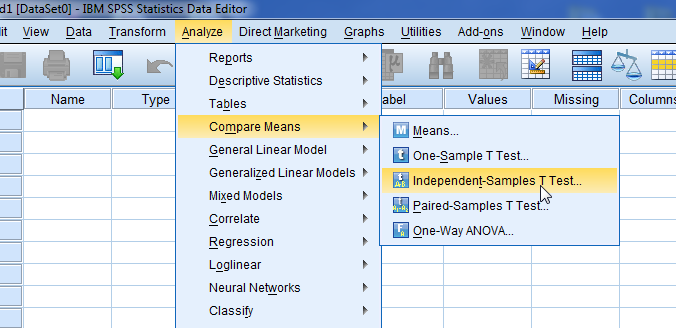
Step 2: Pick your variables.
A window pops open. Drop Blood Pressure into the Test Variable box, since that’s the thing you measured. Then Gender goes into the Grouping Variable box, because that’s what splits your two groups.
Step 3: Tell SPSS your groups.
It won’t know what your codes mean on its own. Click Define Groups and type 1 for Male, 2 for Female, matching the coding from earlier.
Step 4: Run it.
Click OK. The math happens in a blink, and everything gets sent over to the Output Window.
Step 5: Make sense of the results.
This is where it counts. Glance at the mean values first. They show the average pressure for each group, so you can see which side runs higher. Then track down the p-value.
The one rule worth committing to memory:
When p < 0.05, the difference between your groups is statistically significant. In plain English: it’s probably real, not just random noise.
And that’s it. First SPSS analysis, done.
How to Interpret SPSS Output Without Getting Confused
Your results pop up, and all at once, the Output Window looks packed. Breathe. For most beginners, four numbers carry the weight, and you can leave the rest alone for now.
The mean is your average, the typical value for a group.
Standard deviation covers the spread, telling you how far your numbers wander from that average.
The confidence interval speaks to precision, handing you a likely range for the true value. And the p-value flags significance, helping you judge whether a finding is real or down to chance.
Practical Tip: Resist the urge to read every figure in the table. Stick to the stats that actually answer your research question.
A good SPSS output interpretation is mostly about knowing where to point your eyes.
Common SPSS Mistakes Beginners Make
Even seasoned researchers trip up from time to time. Spot these traps early, and you’ll dodge a world of frustration:
- Entering data incorrectly. One tiny typo can wreck an entire analysis.
- Picking the wrong statistical test. Let your research question make the call.
- Glossing over missing values. Unmarked gaps quietly skew your numbers.
- Reading p-values the wrong way. Significant doesn’t automatically mean meaningful.
- Skipping the assumptions. Plenty of tests expect your data to meet a few conditions first.
Steer clear of these, and you’re already a step ahead of most newcomers. Tidy habits now lead to results you can stand behind later.
Final Thoughts: Your SPSS Learning Roadmap
SPSS gets a whole lot friendlier when you take it in stages. A sensible order looks like this:
- Data entry
- Descriptive statistics
- t-tests
- Chi-square tests
- Correlation
- Regression analysis
Get comfortable with one before climbing to the next, and the whole thing stays manageable.
And the reassuring part? You don’t have to turn into a statistician to get real value out of SPSS. Most medical research leans on just a handful of tests. Nail those basics, and you’ll be analyzing your data and publishing your work with real confidence.
American Academy of Research & Academics
SPSS shows you which buttons to click. We teach you why each test works.
As this guide says, you need a foundation in biostatistics and research methodology before you run a single test. Our courses give you exactly that, so you can pick the right test, read your output with confidence, and defend your results at review.
Also explore: Membership plans · More research guides · Talk to our team
Before running any test in SPSS software, you should have a basic knowledge of two things: Basic biostatistics and research methodology. If you are a beginner who wants to expand their expertise in running analysis software, visit the American Academy of Research and Academics.
Disclaimer:
Articles published by American Academy of Research & Academics are prepared by our team using information from direct experience, publicly available resources, and educational references. AI tools may be used to assist with drafting, proofreading, and formatting; however, all content undergoes review and approval before publication.
The information provided is intended for educational purposes only. Requirements, policies, and processes may change over time. Readers should consult official sources for the most current information.